
You've booked the venue, locked in the speakers and negotiated the coffee down to a reasonable price. Then the invite goes out, and your guest lands on a grey page with a form and the word "Registration" in Times New Roman.
Your event registration page is your first impression. It's where guests decide, in a few seconds, whether this is an event they want to attend or an email they'll reply to "later". (Spoiler: later never comes.)
The good news is that premium rarely comes down to budget. It comes down to clarity, care and a few smart design choices. Here are seven things you can fix today, whatever tool you use. And if you use Ventla, we'll show you exactly where to do it at the end.
1. Start with a clear header
What, when, where and who it's for. In three seconds. That's all a visitor needs to decide whether the event is for them.
Try this: show the page to a colleague for three seconds and ask them to repeat it back. If they can't answer those four questions, your header is doing too much, or too little.
- Event name big, date and location right below it.
- A one-line subheading that says what the guest gets out of it. Not "Welcome to our annual conference", bu" "One day on the future of logistics, with the people actually building it."
- A registration button that's visible without scrolling.
2. One strong image beats five small ones
Logos, venue shots, speaker headshots and a stock photo of a handshake. Put them in a collage and they all fight for attention. Nobody wins.
Pick one image that sets the mood. A photo from last year's event, with real people who look like they're having fun, is gold. Stock photos of people pointing at a whiteboard are less gold.
- High resolution, but compressed so the page loads fast.
- Give text over images room to breathe, or add a dark overlay behind it.
- No photos of your own? A bold colour block with good typography often feels more premium than a mediocre picture.
- Got good footage? A short background video behind the header adds energy straight away. Just make sure the text on top is still readable.
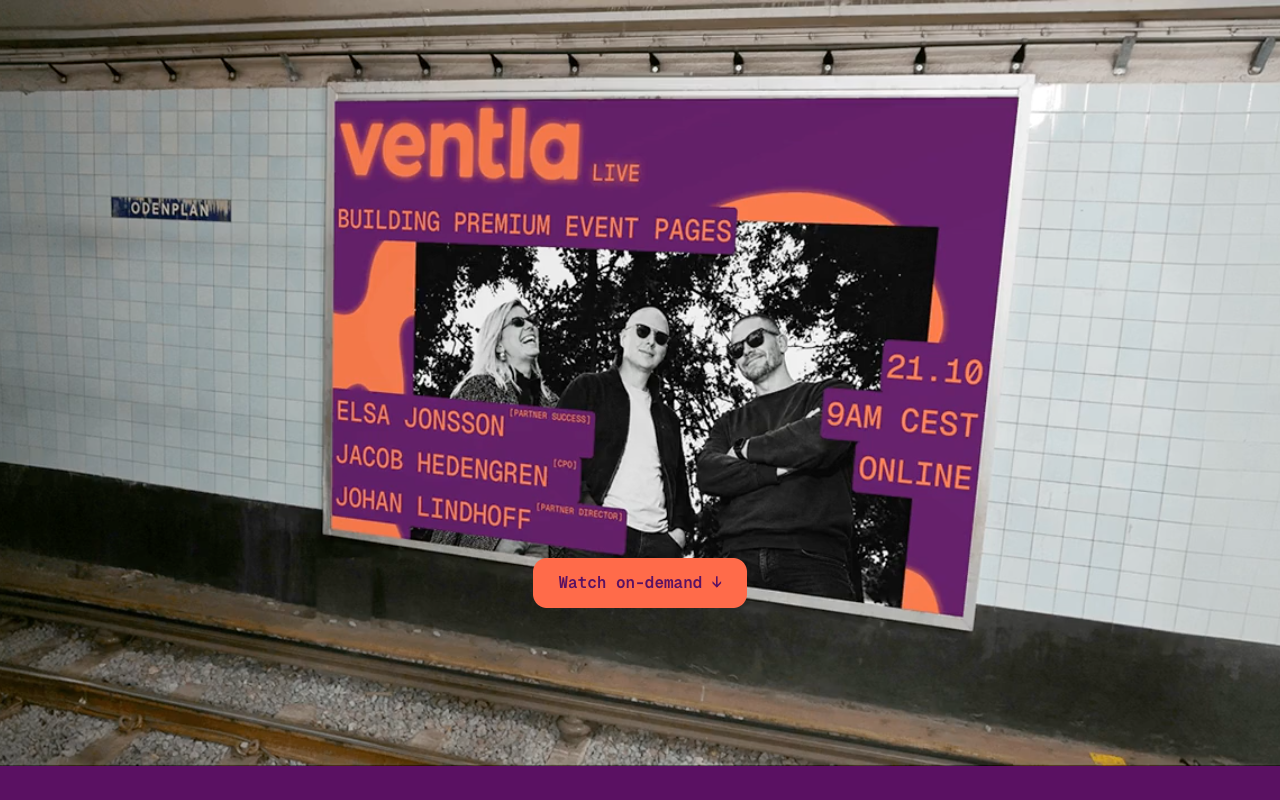
3. Colours with contrast
Pretty isn't pretty if nobody can read it. Light grey text on white looks elegant in your design tool and impossible in sunlight on a train platform.
- Stick to two or three colours: a base, an accent and neutral text.
- Save the accent colour for the most important thing on the page: the registration button.
- Run a WCAG contrast check; there are free tools for it. Good contrast is accessibility, and accessibility is premium.
4. Mobile first
Most people open the invite link on their phone. Between meetings, in the lunch queue, on the sofa at night. Design for that screen first, not last.
- Send the link to your own phone and register. All the way through, not just the first screen.
- Buttons you can hit with a thumb and text you can read without zooming.
- Agenda and speakers in a format that works on a narrow screen. So, not a six-column table.
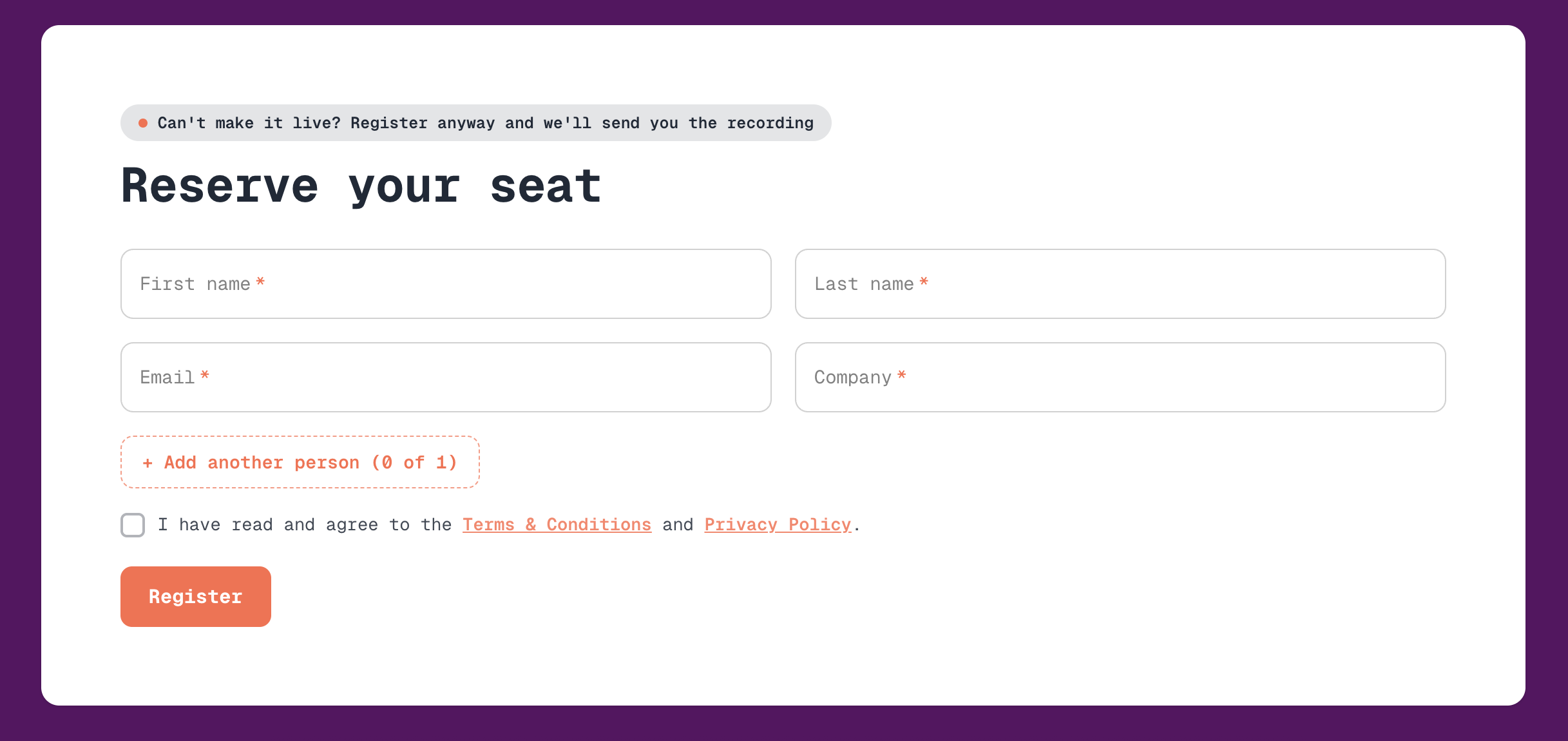
5. Keep the form short
Every field you add is a reason for someone to give up. Only ask for what you actually need for the event.
Ask one question of every field: what will we do with the answer? If the answer is "it might be nice to have", cut it.
- Name, email and anything that affects logistics, like dietary needs, goes a long way.
- Group fields logically and make it clear what's required.
- Need to ask more? Split it into steps so it doesn't look like a tax return.
6. Show the agenda and speakers right away
It's what people came to see. Speakers and the programme make someone think "I can't miss this", not the paragraph about your organisation's history.
- Show speakers with a photo, name, title and one line on what they'll talk about.
- A scannable agenda with times, high up on the page. Not hidden in a PDF.
- Programme not final yet? Show what's confirmed and add "more speakers announced soon". It builds anticipation instead of leaving a gap.

7. Make it personal
A pre-filled page feels like an invitation, not a form. If you already know who your guest is, why make them type in their name and email again?
- Use personal links so the form fills itself in.
- Greet guests by name: "Hi Anna, we've saved you a seat."
- Write like a human. "See you there!" beats "Your registration has been received."
- Let the page come alive. Ask a fun question on the form and show the answers on the page, for example as a chart that grows with every new sign-up. Registering becomes part of the event, not a hurdle before it.
Premium is a decision, not a budget
None of these tips need an agency or an expensive designer. They need you to see the page through your guest's eyes: a clear header, an image that sets the tone, text people can read, a form that respects their time and a tone that says you actually want them there. Start with one tip a week, or do all seven before your next invite goes out. Or let your tools do some of the work for you.
How to do it in Ventla
When you build an event website in Ventla, most of the tips above are already built in. And the page should look like your event, not like Ventla.
"We want you to be able to showcase your brand, not Ventla's brand."
Set your colours once, and they follow you everywhere
Under Set up → Branding, you pick four colours: Brand for buttons and links, Accent for tags and highlights, Background for page surfaces and Text for body copy. The palette carries over automatically to the attendee app, the event website and the emails you send. No recolouring the same thing three times, and every new event starts in your organisation's colours. Fonts are set in the site settings, and you can upload your own.
"What you set here is also reflected on the website, in your emails and later in the app. So everything you do now helps you further on."
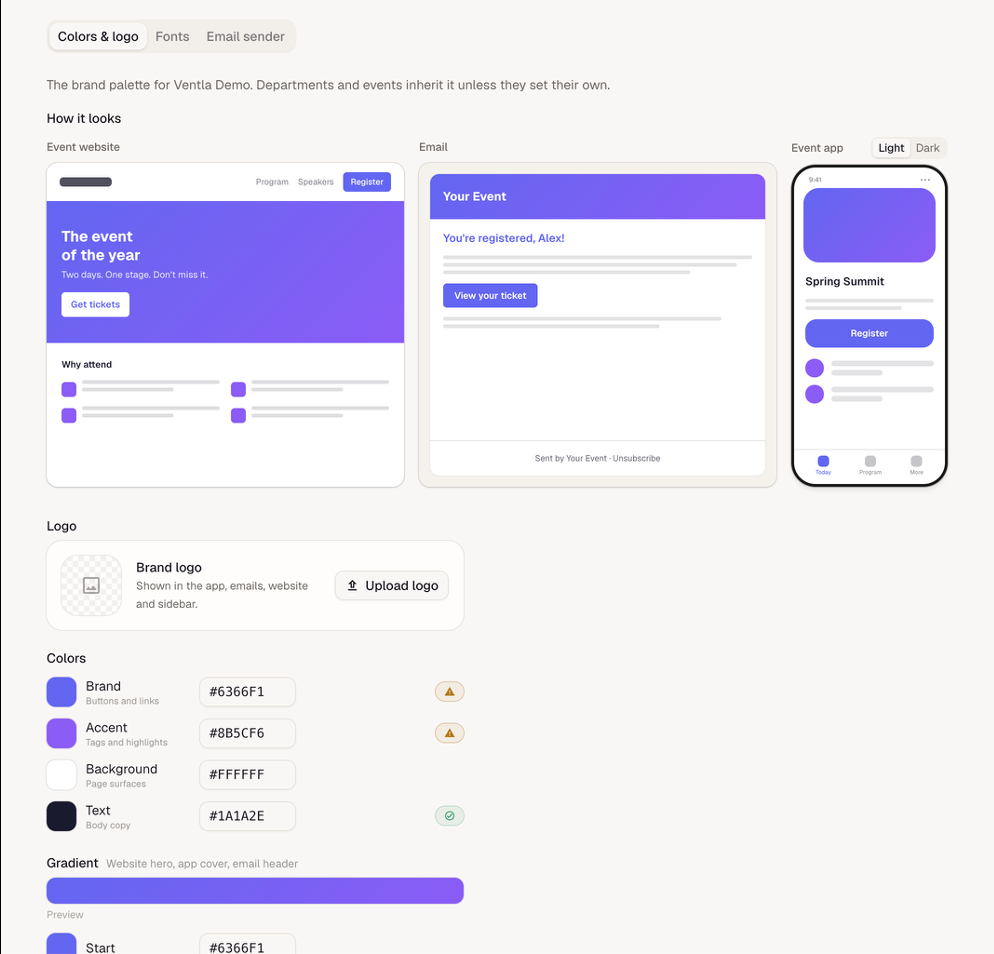
The gradient header, and the warning that saves you from light grey
Below the colours, you set the Gradient: one flat colour or a blend between two. It sits behind the website header, the app cover and the email header. And if light grey on white still tempts you, Ventla speaks up. Every colour is checked against its background before you save. "May be hard to read" is advice, but text that is genuinely unreadable can't be saved. A bit like a colleague with good taste, minus the opinions about your lunch.
Template, blocks and the form right on the page
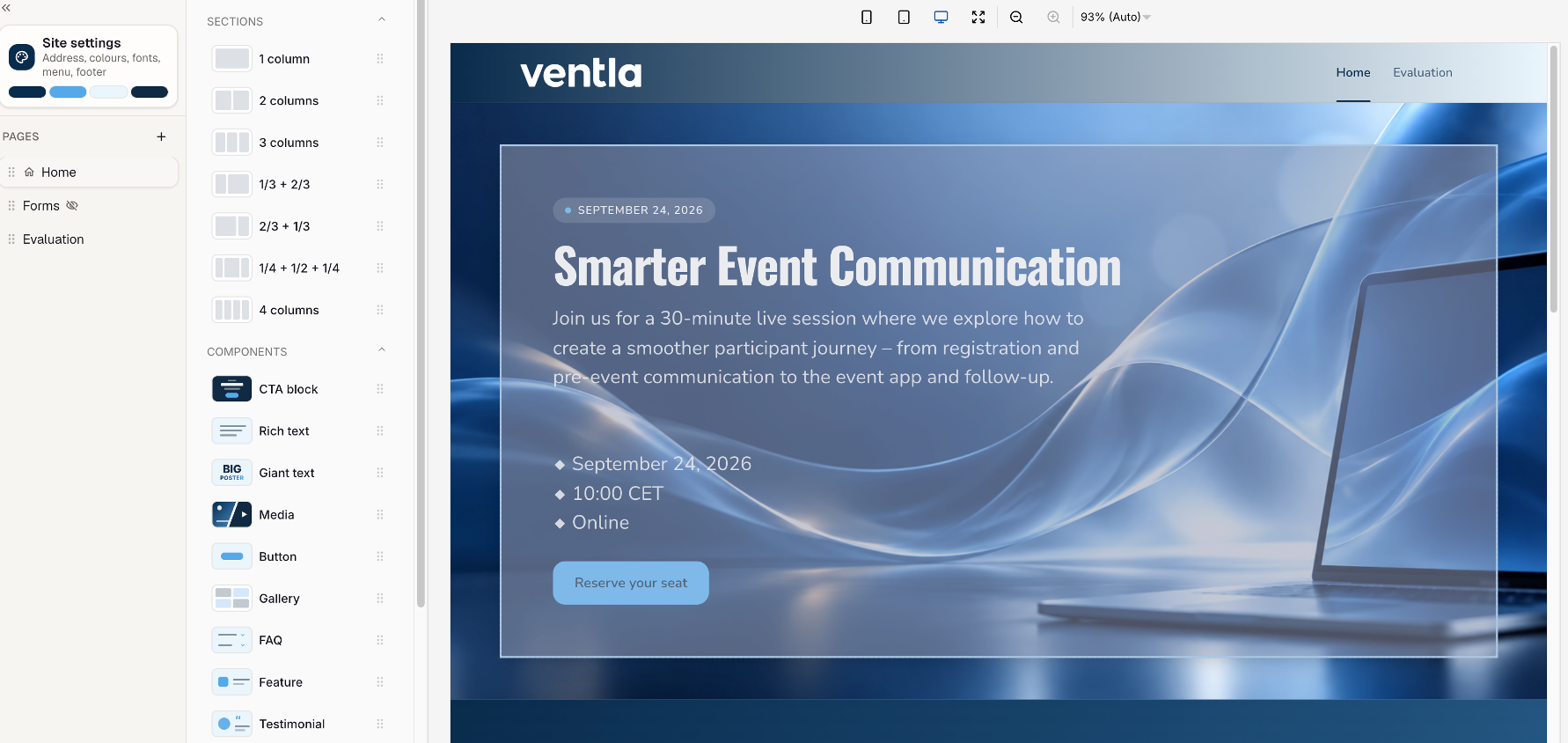
Under Registration → Event page, click New website and choose a starting point: a Ventla template, one of your organisation's own, or a blank page. Then drag in blocks. The event content blocks pull speakers and the agenda straight from your event and stay live, so a new speaker shows up on the page right away. The Registration block puts your form on the page, and if you have several forms, you can use them on the same page. Everything works just as well on a phone as on a desktop.
You create the programme and speakers once under Event content, and the same content then shows on both the event website and in the app. Already have the programme in Excel? Paste it in or upload the file, and Ventla checks the whole sheet before anything is saved.
"No need to do it twice. We have it already."
Personal links that fill in the form for your guests
Add the website link to an email sent from Ventla, and every recipient gets their own version. The form arrives pre-filled with their name, company and job title, and the registration lands on the right person even if they type a different email address. With variables, you can also write "Hi Anna" right on the page. Anyone arriving without a personal link gets a neutral greeting instead.
Your own web address, and publish now or later
Every site gets a Ventla address straight away, but you can also put it on your own domain under Web address. When everything's in place, click Publish changes and choose Publish now, or At a time to schedule it. Forgot an empty block, like a speakers section with no speakers? Ventla warns you before the page goes live.