
When we are deciding direction for Ventla, we try to start with the problem. Gather data, then pave a path forward.
This is what the data in EventsAir's State of Events 2026 shows: 62% of event pros say they already use AI for marketing and communications, mostly for things that feel safe, like drafting emails.
It's the classic chatbot workflow, asking the chatbot to get some usable text output. Copy paste into the tools you frequently use.
That was all AI could handle two years ago, and people are slow to adapt! So no worries, but the frontier models are getting so good that they can operate tools the same way their users would.
That means the chatbots you use for quickly answering a question or drafting up an email can now use the same tools as you do. Browse the web, send emails, create Excel files and so on.
What we have done with Ventla is create an event management tool for your AI!
The event management tool – and what MCP has to do with it
Your AI knows nothing about your event. It doesn't know who has registered, who is in the VIP segment or which speaker still has no photo. So you become the courier: export, clean up the columns, paste, ask your chatbot. By the next morning the answer is out of date.
That's where Ventla MCP comes in. It works through the same tool calling your AI already uses for things like web search. In short: it makes your AI understand Ventla. And because it's an open standard, it works with ChatGPT, Claude and Microsoft Copilot alike.
MCP stands for Model Context Protocol. It's a protocol that lets us build a layer that your AI can operate on.
You paste an address into your assistant, sign in with your Ventla account, and from then on it answers from your event as it is right now. It hands over the gruelling mouse and keyboard work you normally operate to your AI system of choice.
5 things the MCP could answer for you with just a simple prompt
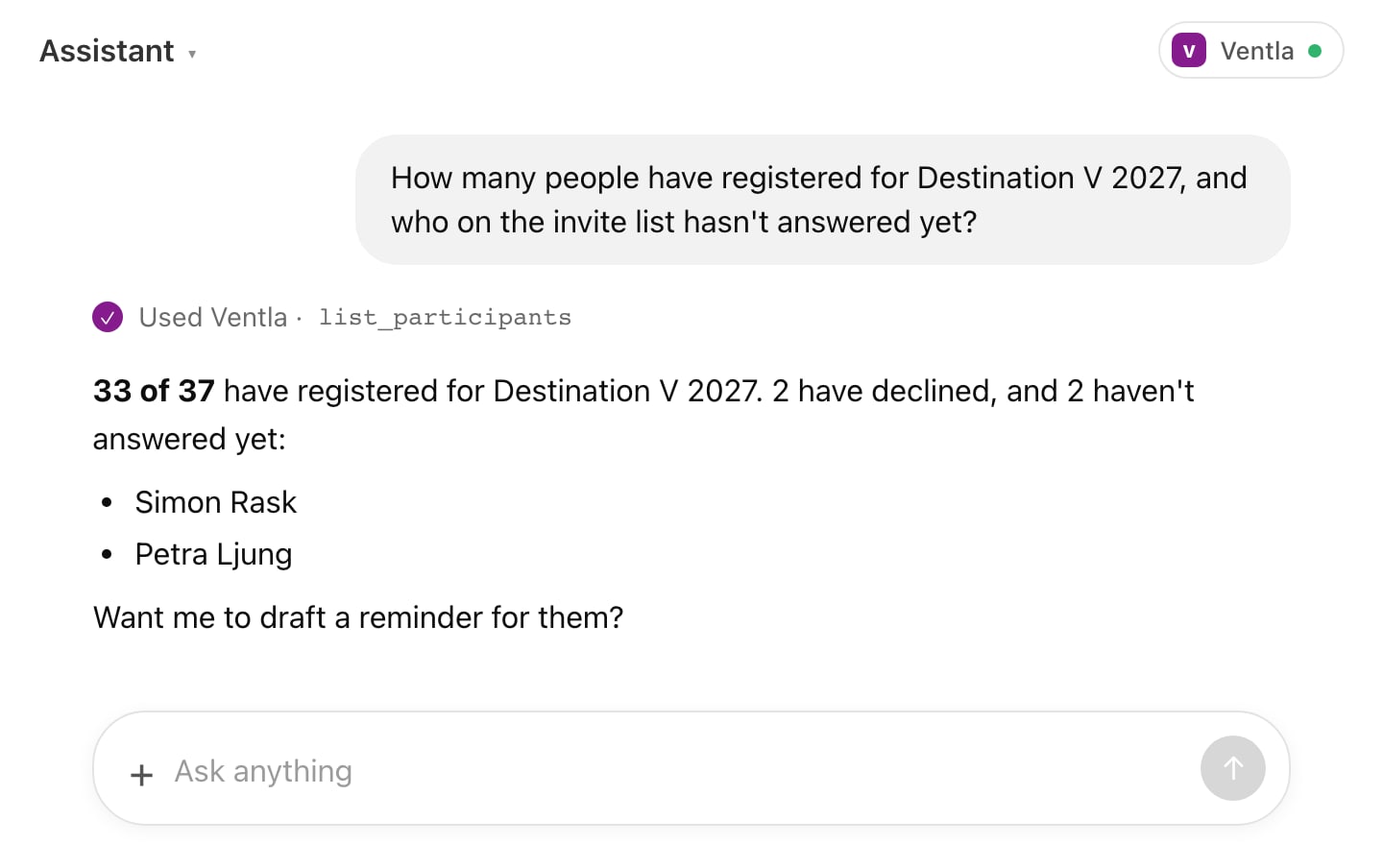
1. Stop counting by hand
How many have registered? Who hasn't answered? No need to open three pages and a calculator. You just ask.
"How many people have registered for [EVENT], and who on the invite list hasn't answered yet?"
2. An event from a single sentence
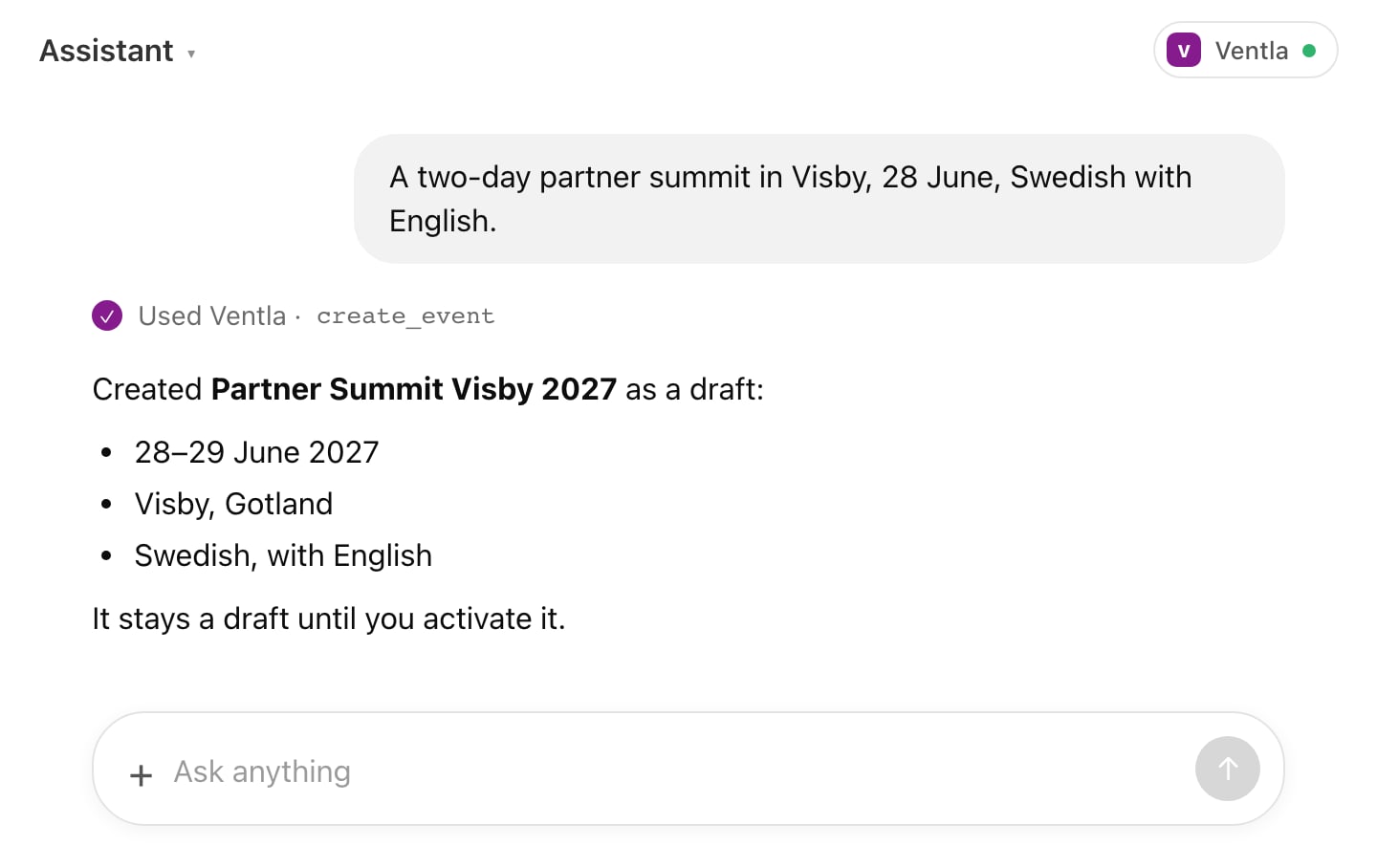
Give the assistant a brief and it creates the event with the name, dates, place, time zone and languages in place. It arrives as a draft, so you're still the one who presses the button.
"A two-day partner summit in Visby, 28 June, Swedish with English."
3. The spreadsheet that checks itself
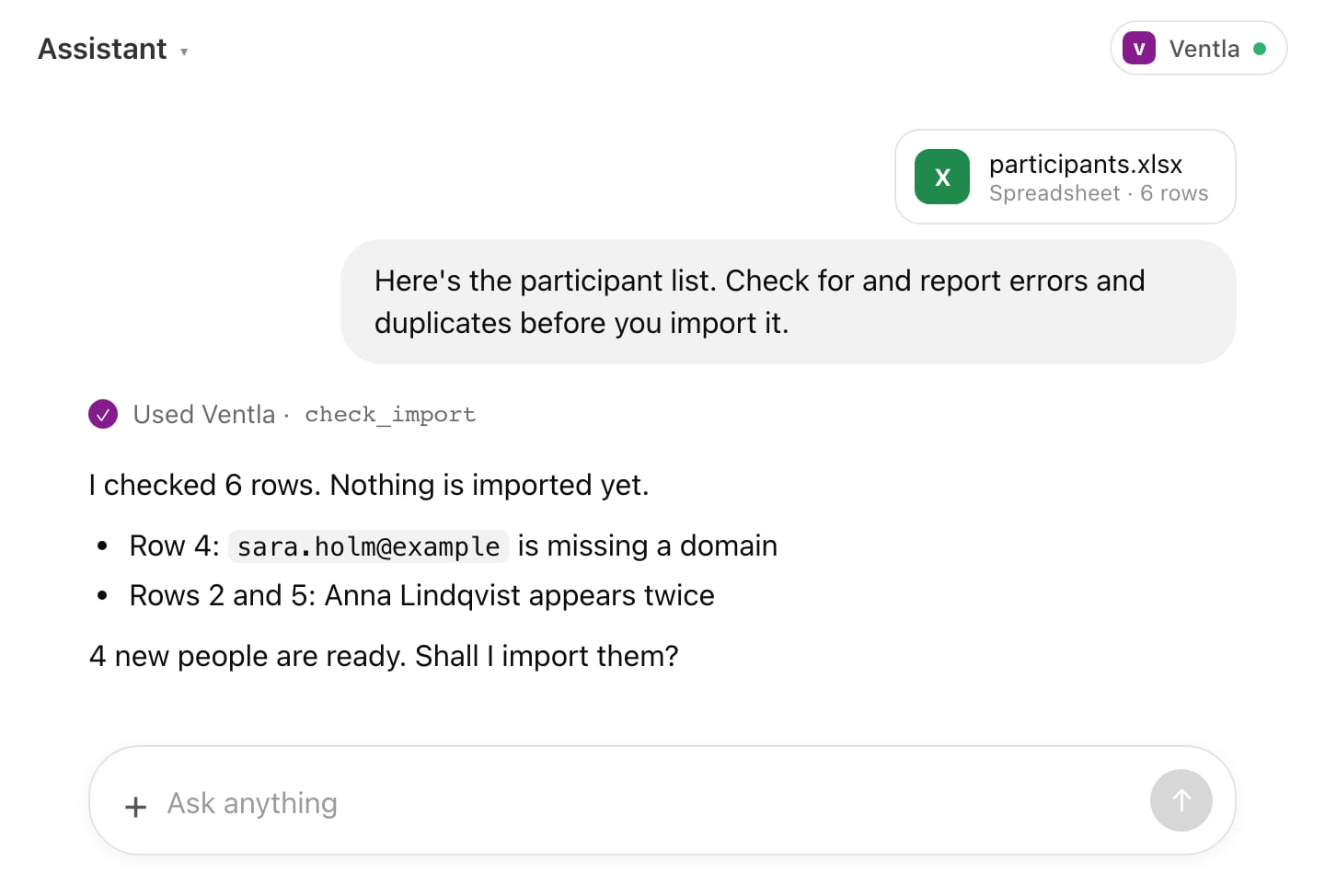
Hand over the participant list as it is. The assistant checks the rows before anything is imported and flags the broken email address and the Anna who appears twice. Then it imports – when you say yes.
"Here's the participant list. Check for and report errors and duplicates before you import it."
4. The event website, built while you grab a coffee
The assistant builds a draft event website from a template, with a hero, programme, speakers, FAQ and sign-up form. Describe a feel in your own words and it sets the colours and fonts. You fine-tune it in the builder.
"Build an event website for [EVENT]. Dark green and cream, elegant, a bold headline font."
5. The report for your boss, without the blank page
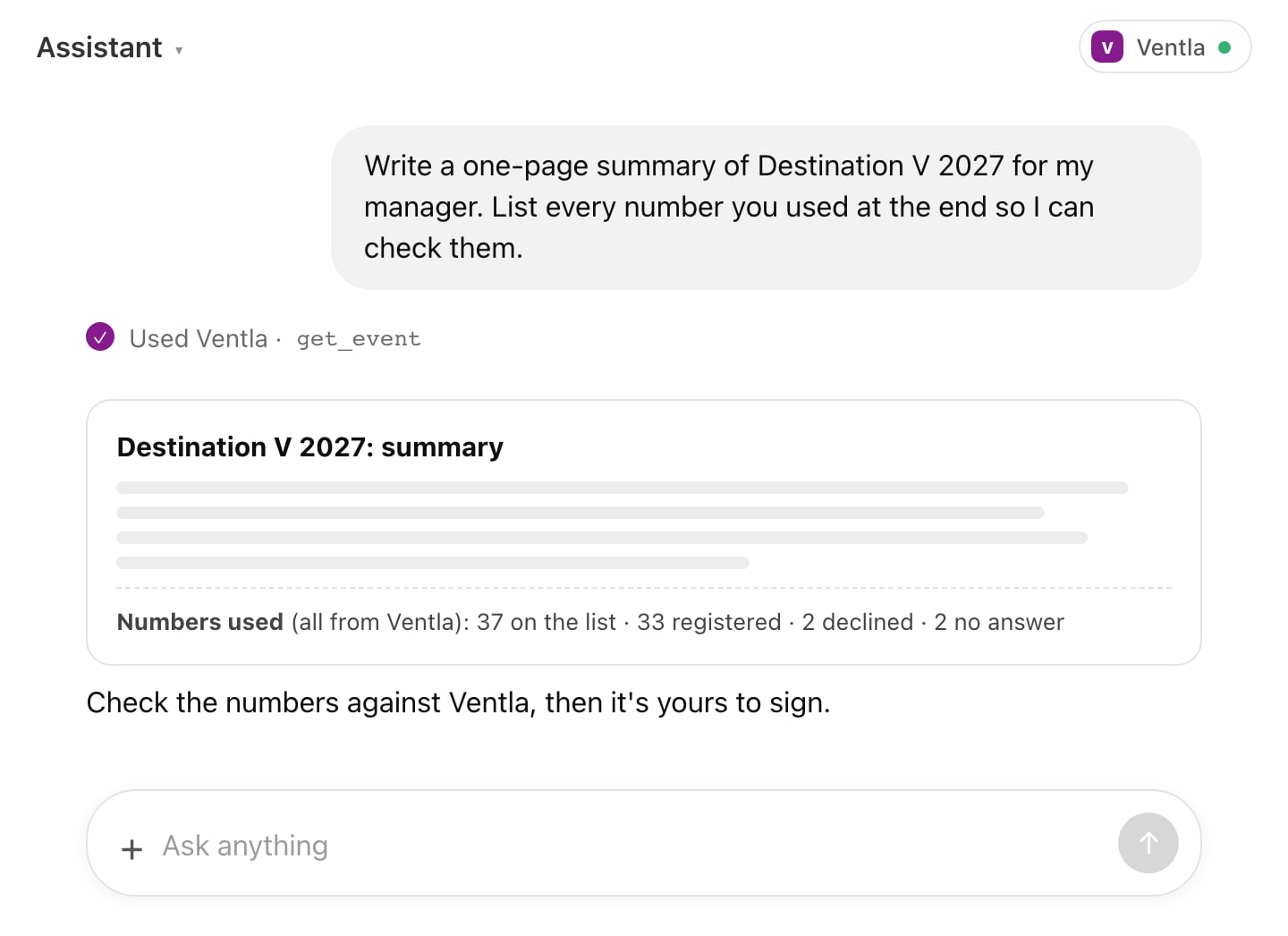
The event is over and someone wants "a page on how it went". The assistant fetches the participant data, you attach the evaluation, and it writes the first draft. You check the numbers and sign it.
"Write a one-page summary of [EVENT] for my manager. List every number you used at the end so I can check them."
And yes – you're in control
Letting an assistant near your participant list should be a decision you make on purpose. That's why:
- Everything is off until you turn it on, and you can start with read-only access.
- Access is granted per person and can expire by itself. Personal details can be masked.
- Everything the assistant changes shows up in the audit trail, marked (via MCP). It can't send emails or push notifications, and it can't publish your website. New events and websites arrive as drafts, and you're the one who goes live.
So, what's the first question you're asking?
Our tip: start with number 1 and ask something you already know the answer to. When the number matches, you know what you're working with, and it's hard to go back to the calculator.
If you really want to go bananas, just describe the event you're planning in a few sentences, maybe describe the atmosphere you want to create for your participants, and press enter. Then go and grab a coffee!
Want to see it live?
At Ventla Live on 4 November we walk through MCP in Ventla from the start.
Register for Ventla Live